AIOTA Trading Assistant
One panel to open, manage and protect every trade

AIOTA Trading Assistant is a trade-management panel that sits on your MetaTrader 5 chart. It lets you open orders with the right size in seconds, attaches stop loss and take-profit targets automatically, moves your stops for you, closes trades in one click, keeps your account inside its loss limits, and sends every move to Telegram.It is built for traders who place trades by hand: forex, gold, indices, crypto CFDs and stocks, on any broker that offers MetaTrader 5. It works on Windows and on macOS, and the panel looks and behaves the same on both.
What you get
1. Open Positions
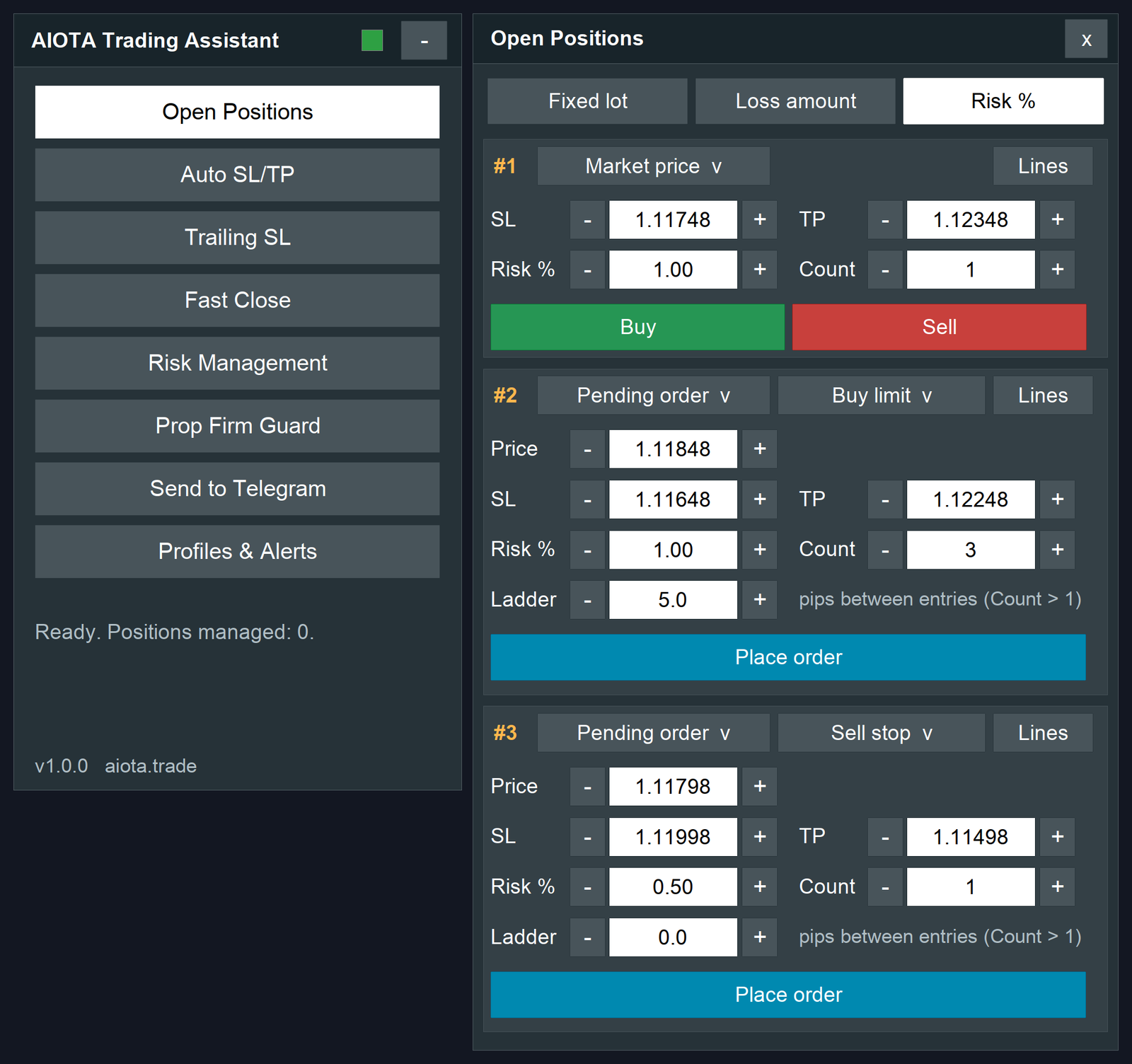
Open Positions has three order forms (#1, #2, #3), so you can prepare several ideas and fire them with one click each.
Choosing how the size is decided
At the top of the section pick one of three sizing modes. It applies to all forms.
Loss amount : you type the money you accept to lose
you type the money you accept to lose (for example 50). The assistant reads your stop loss, works out the distance, and calculates the lot for you
Risk % : you type a percent of your account balance
you type a percent of your account balance (for example 1). The lot is calculated from your stop loss so that, if the stop is hit, you lose that percent
2. Auto SL/TP
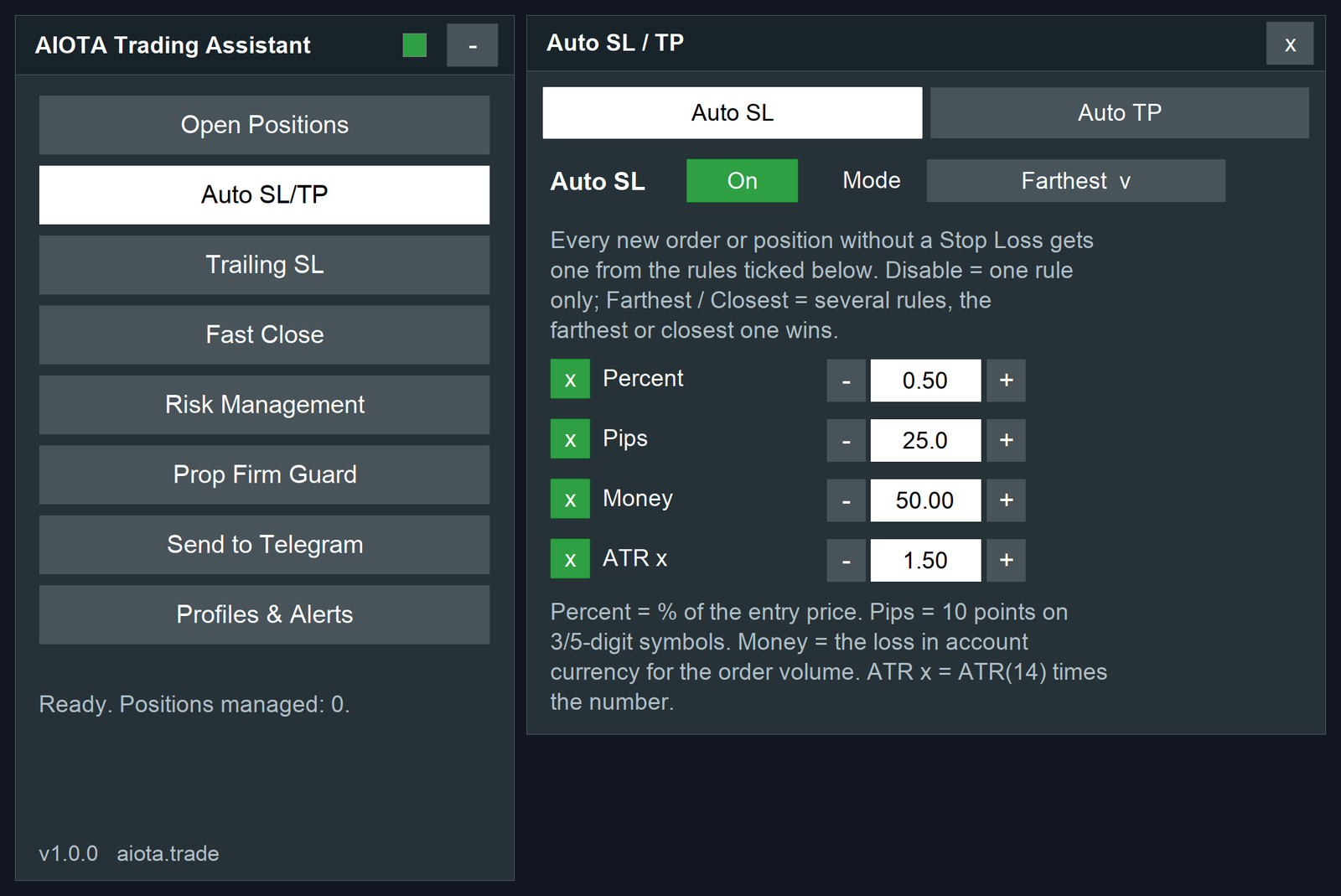
Auto SL/TP puts a stop loss and take-profit targets on every new trade for you, whether you open it from the panel or from MetaTrader itself.
Auto SL
Turn it on and tick the rules you want. Each rule has a number
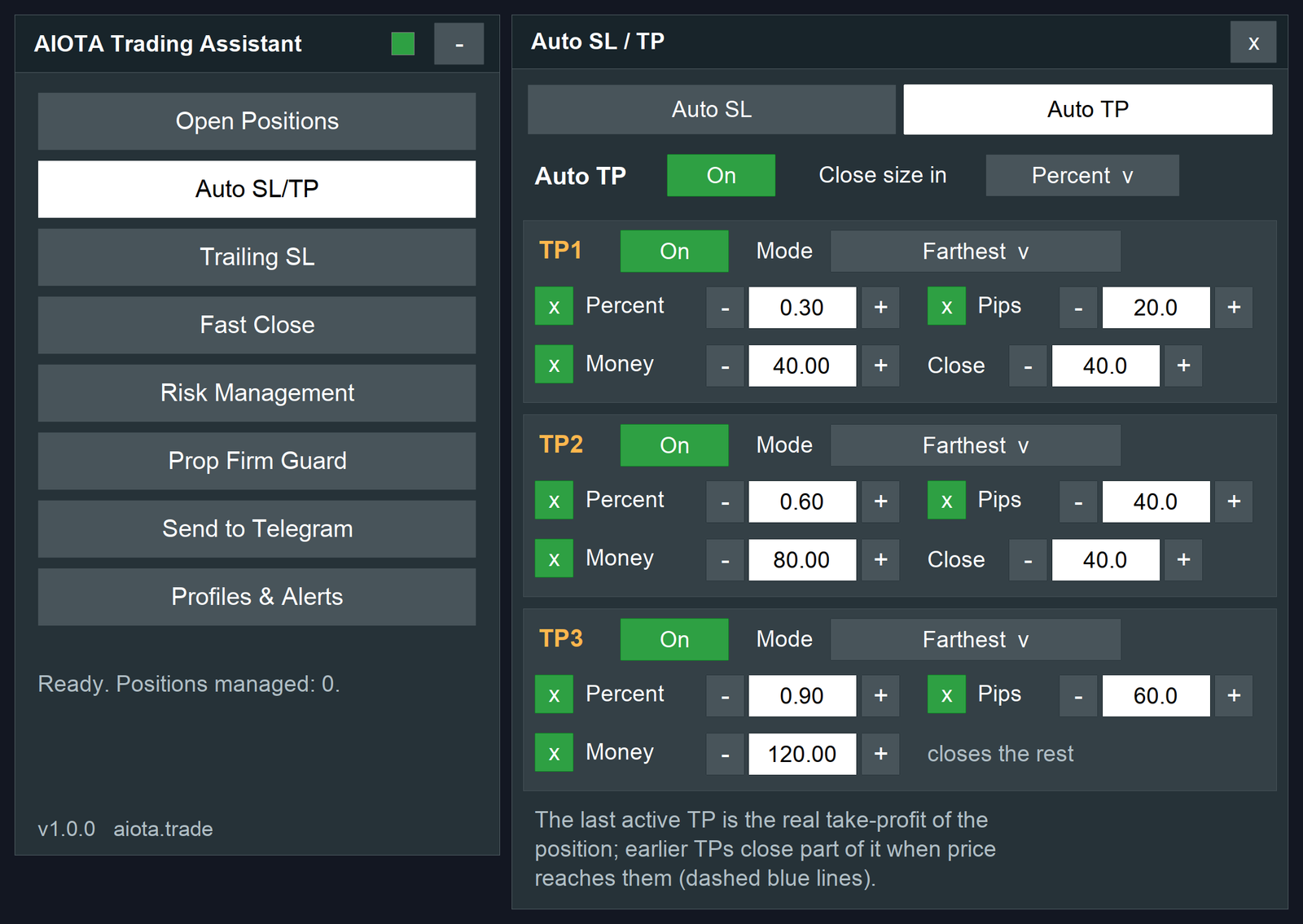
Auto TP with up to three targets
Turn on Auto TP and then TP1, TP2 and TP3 as you need them. Each target uses the same kinds of rules (percent, pips, money) and the same Farthest / Closest choice
Earlier targets are partial exits
when price reaches TP1 the assistant closes the part you chose. You set the part as a volume or as a percent of the opening volume
3. Trailing SL
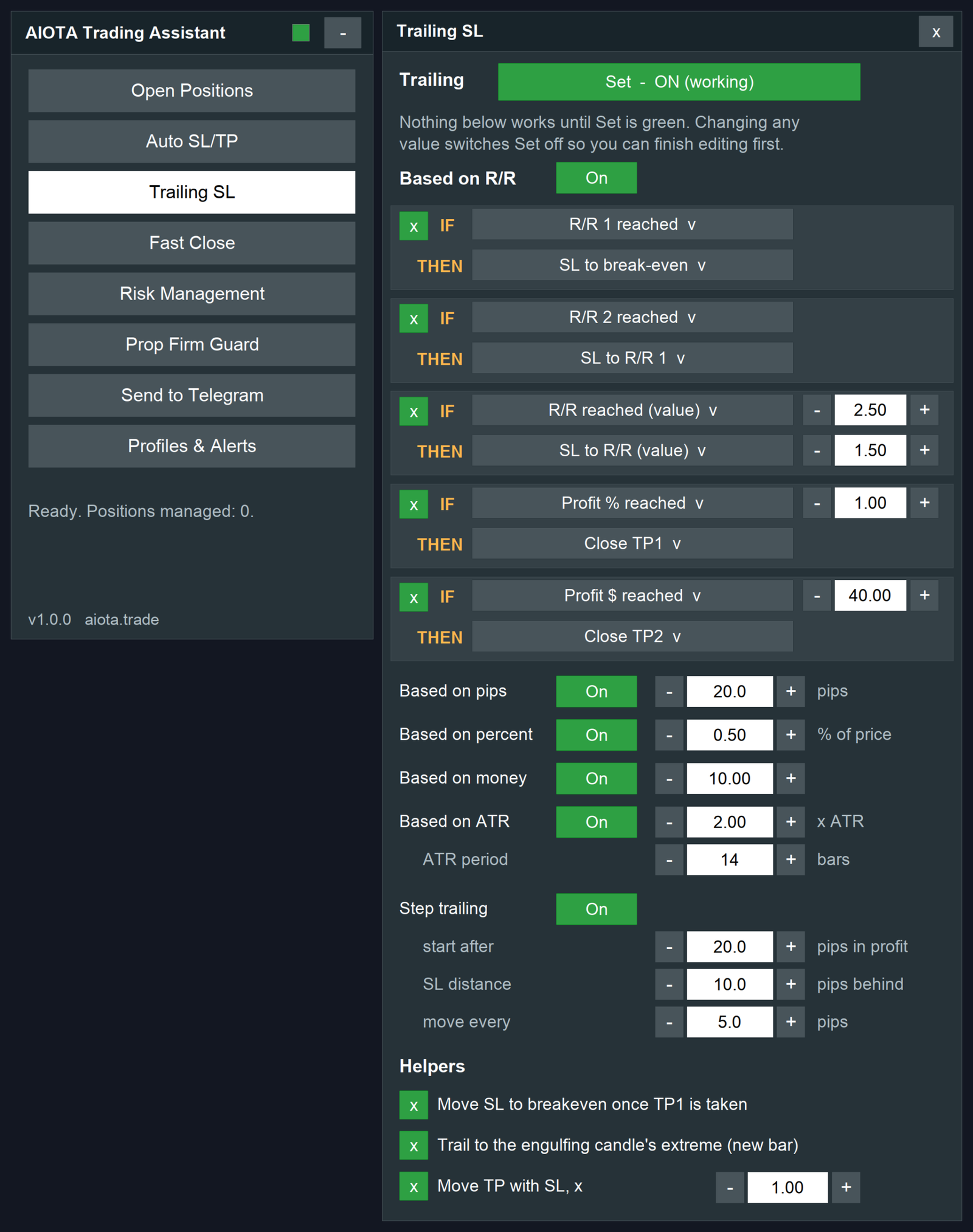
Trailing moves your stop loss for you as the trade moves in your favour. The stop only ever moves in the profitable direction
The Set switch
Nothing in this section works until the big Set button is green. Changing any value switches Set off, so a half-finished rule can never run by accident
R/R rules (IF this, THEN that)
Build up to ten rules, each with a checkbox. A rule reads like a sentence
Other trailing methods
Turn on Auto TP and then TP1, TP2 and TP3 as you need them. Each target uses the same kinds of rules (percent, pips, money) and the same Farthest / Closest choice
Pips, percent, money and ATR
classic trailing that follows the price at a fixed distance once the trade is in profit
Step trailing
set a start, a distance and a step in pips. The stop jumps in whole steps instead of following every tick, which keeps your stop away from noise
Breakeven after TP1
once the first target is taken, the stop on the rest moves to entry plus a small cushion
Helpers
4. Fast Close
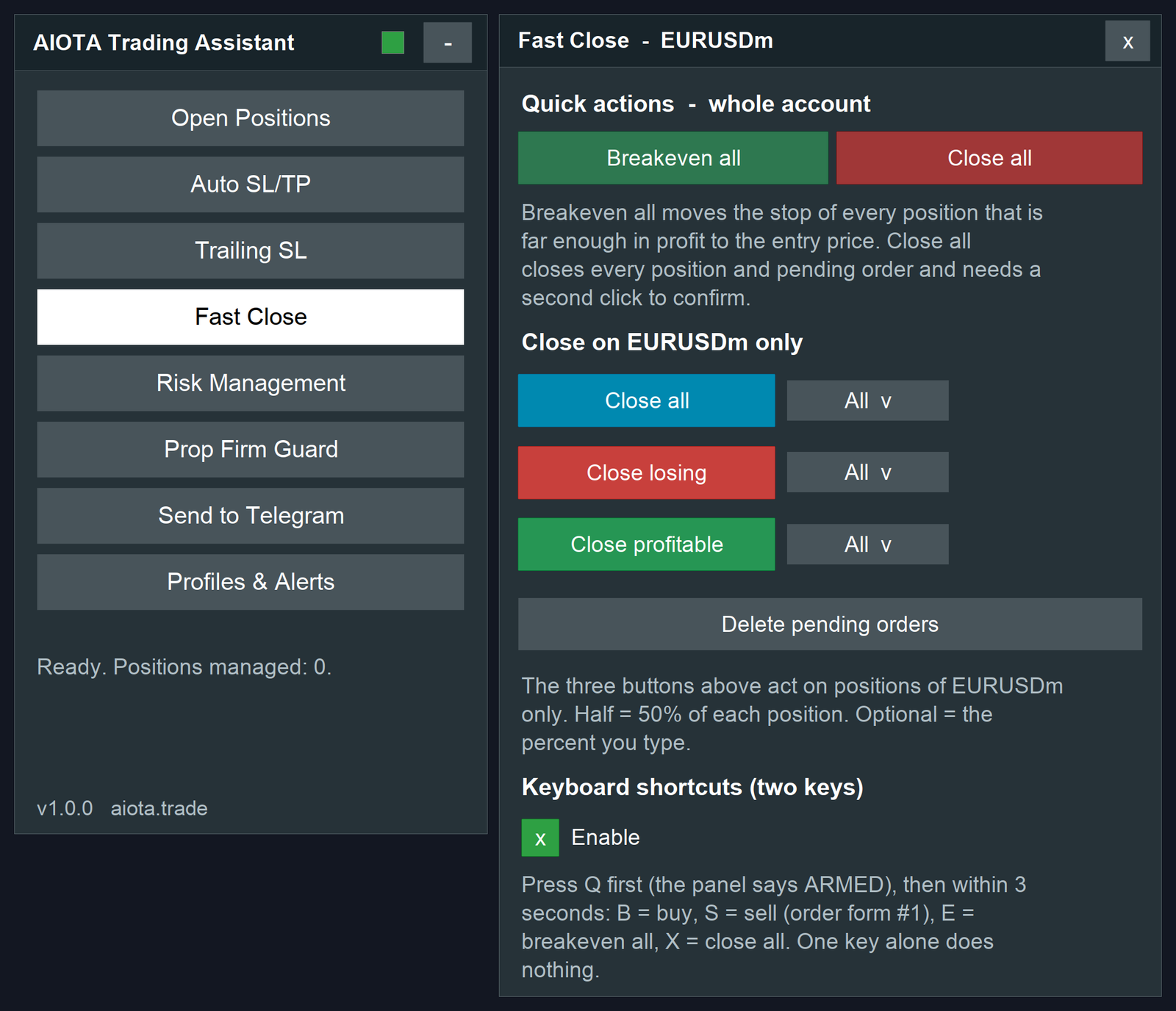
Fast Close acts on the open positions of the chart's symbol.
Keyboard shortcuts that need two keys
Shortcuts are off until you tick Enable in this section. They are built so that one accidental key press can never open or close a trade.
1. Press the arm key (default Q, changeable in the inputs). The panel says it is armed.
2. Within three seconds press B to buy, S to sell (using order form 1), E for breakeven all or X to close all.
Quick actions at the top of Fast Close
Breakeven: moves the stop of every position that is far enough in profit to entry plus a small cushion that covers the spread. Positions not in profit yet are left alone, and positions already at or beyond breakeven are skipped. The message tells you how many of each.
Close all: closes all positions and pending orders. To prevent mistakes it asks for a second click: the button changes to Sure? Click again for four seconds.
5. Risk Management
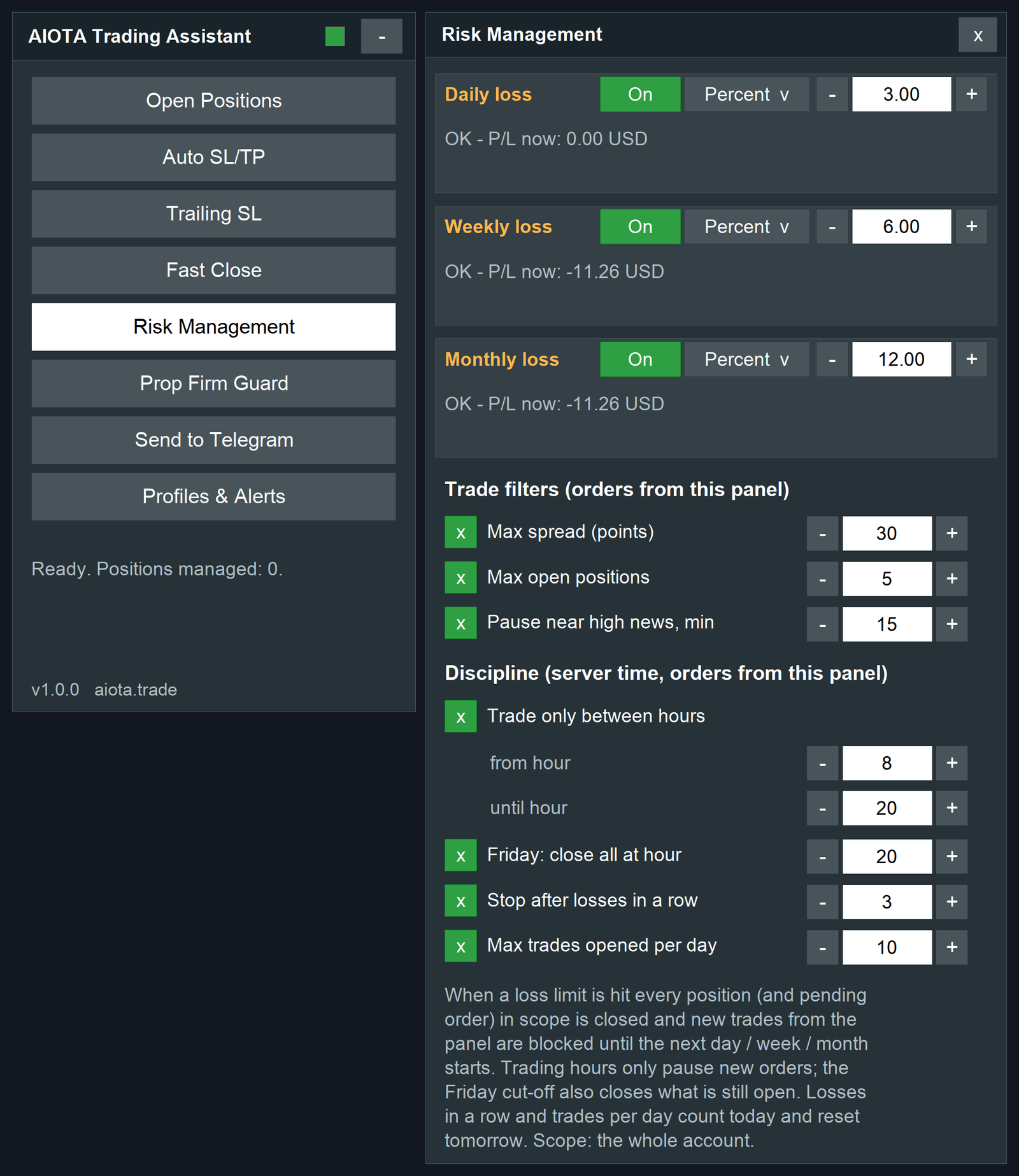
Loss limits
Set a daily, weekly and monthly loss limit. Each one can be in money or in percent
When a limit is reached the assistant closes every position and pending order in scope and blocks new trades from the panel until the next day, week or month starts. The scope is the whole account by default, or only the chart's symbol, as you choose in the inputs
Trade filters
Filters protect the orders you place from the panel
Discipline rules
These protect you from your own worst hours. All times are the broker's server time, and they apply to orders opened from the panel
6. Prop Firm Guard
If you trade a funded or challenge account, the Prop Firm Guard watches your equity against the usual drawdown rules
The section shows your equity, the daily stop level, the maximum stop level and how much room is left

Daily level reached
every position and pending order is closed and new trades are blocked until the next daily reset
Maximum level reached
everything is closed and trading stays locked until you press Unlock
Before you trade
an order whose stop loss would take your equity below a guard level is refused, with a message that tells you the level
7. Send to Telegram
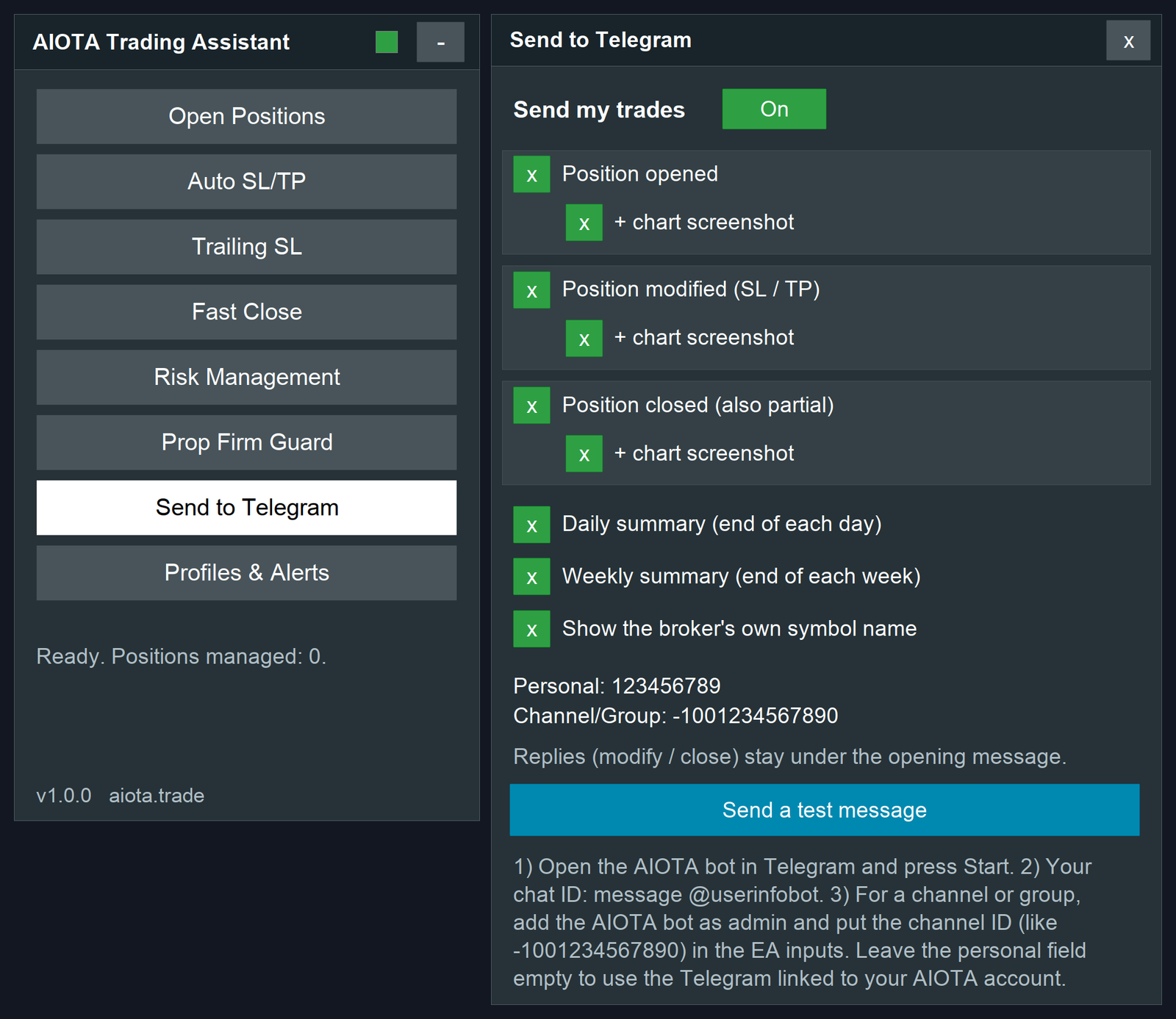
The assistant can post your trades to your own Telegram chat, to a channel or to a group
Under each ticked event you can tick + chart screenshot. The picture is taken without the panel and shows the entry, stop loss, take-profit and close levels
Messages that follow a trade are posted as replies under the opening message, so every trade is one tidy thread. Pending orders are announced too, and the same thread continues when the order is filled
8. Profiles & Alerts
Settings profiles
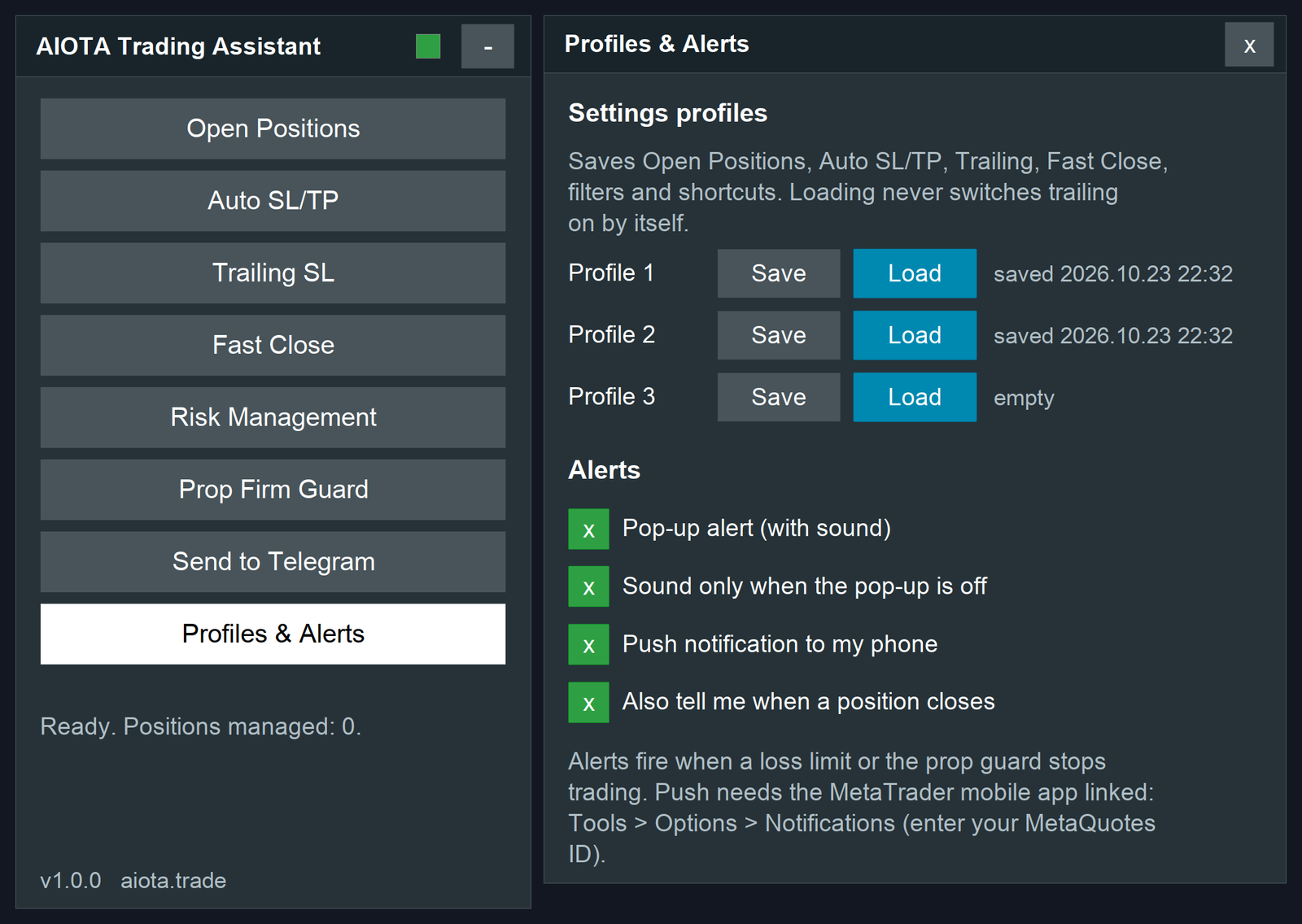
Save your favourite setups in three profiles, for example Scalping, Swing and News. A profile stores your Open Positions, Auto SL/TP, Trailing, Fast Close, filter and shortcut settings. Loading a profile never switches trailing on by itself, so nothing starts moving your stops until you press Set
هشدارها